
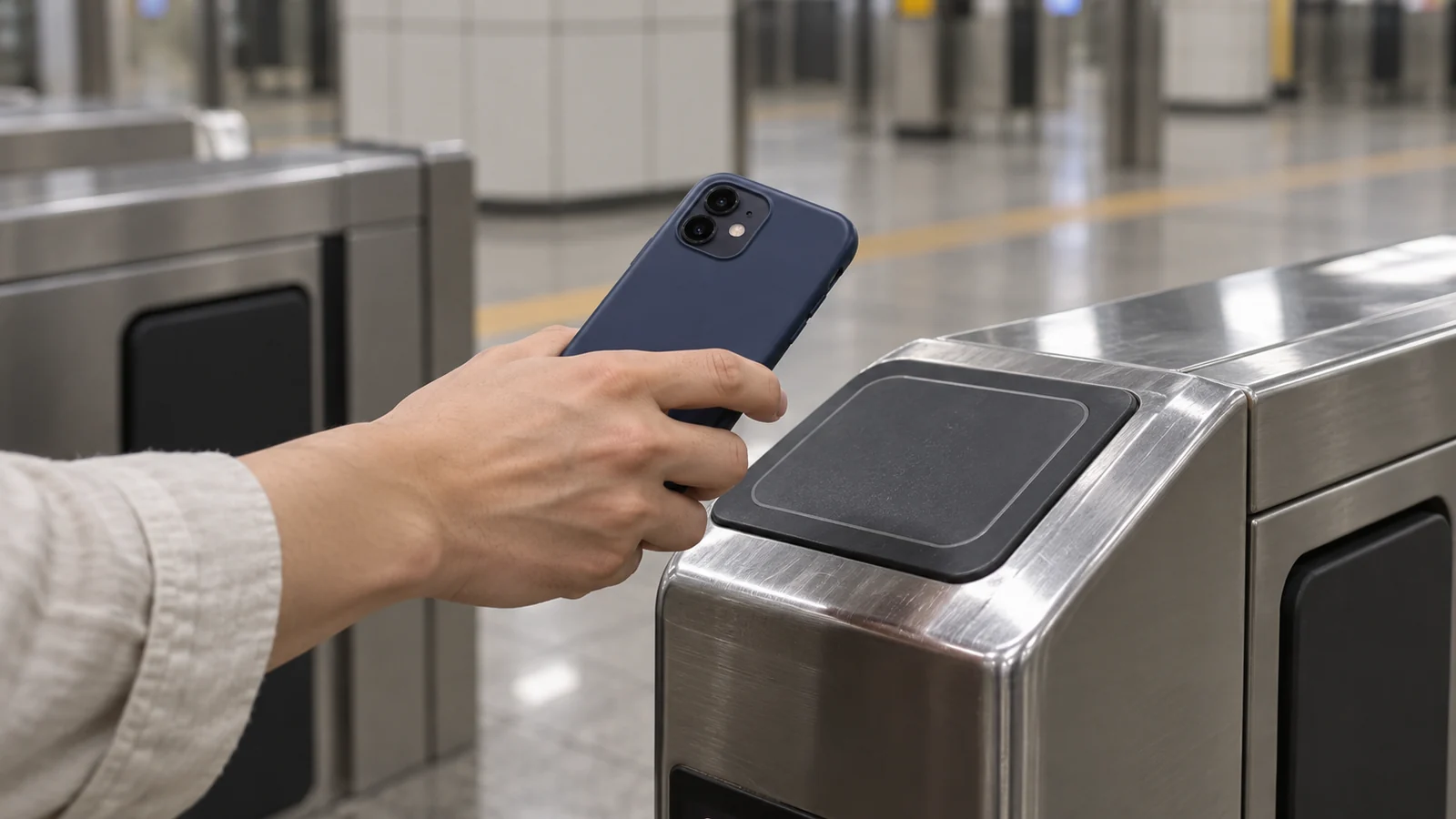
A foreign card can fail in T-money’s “Add Money” flow inside Apple Wallet because that route requires a South Korea-issued payment card. For supported overseas cards, check MobileTmoney’s in-app top-up route. Being able to make an ordinary Apple Pay purchase does not establish that the same card can fund T-money through Wallet. Apple’s transit-card instructions specify the Korean-issued-card requirement in footnote 2.
Official guidance checked October 23, 2026. This guide compares the published funding routes; it is not a completed payment test.
First identify where you are adding money
| Funding route | What to check | Useful next step |
|---|---|---|
| T-money inside Apple Wallet | Apple requires a South Korea-issued credit or debit card for this route | An overseas-card rejection here is a reason to check the separate app route |
| Inside MobileTmoney | Whether your Apple Pay card is on the app’s supported network list | Read the payment preview and confirm the transit balance after funding |
| A physical T-money card at a shop or station | The accepted loading method at that location | Keep Korean won ready; an app’s card support does not establish counter support |
These are different ways to fund transit credit. Use the rule for the route you are actually using. The MobileTmoney listing describes in-app Apple Pay funding, while Tmoney’s physical-card guide recommends cash as the reliable fallback for shop and station reloads.
Check the current app and payment-card list
Use MobileTmoney by Tmoney Co., Ltd. The official App Store listing, version 2.4.7 dated September 1, advertises international use without sign-up and lists Mastercard, American Express, UnionPay and JCB for Apple Pay top-ups.
Visa is absent from that published list. If it is your only card, prepare another way to fund the journey. The list can change, and a supported network does not guarantee that every issuer or transaction will succeed. Check the developer’s current listing before relying on an older travel post.
Set up before you reach the gate
Apple lists iPhone XS/XR or later with iOS 17.2 or later, or Apple Watch Series 6/SE (2nd generation) or later with watchOS 10.2 or later, as the minimum supported devices and software. Apple’s T-money announcement gives those requirements; its support guide recommends the latest software.
Follow the app’s international, no-sign-up setup and its current prompts for adding the transit card. Begin the top-up inside the app. If your version instead leads only to local identity verification, use the developer’s support rather than guessing through that process.
Before approving payment, check three separate numbers:
- The amount of transit credit you requested. This is the balance you intend to spend on travel.
- The total payment shown. Read any fee displayed in the payment preview and check your own card’s overseas-payment terms.
- The balance after completion. Confirm that the intended transit card received the money before entering the queue.
Start with a modest amount suited to your immediate journey. If the payment status is unclear, inspect the transaction and balance before making another attempt. Keep the confirmation for resolving a mismatch.
Match the problem to the next action
| What happened | Next action |
|---|---|
| Wallet rejects the overseas card | Return to the route comparison above; repeated attempts in the same flow do not change its eligibility rule |
| The app shows no usable visitor setup | Record the app version, phone model and exact message for support |
| The app rejects a listed network | Check the issuer’s transaction status and the app error; the network logo alone cannot explain the decline |
| A charge appears but the transit balance has not changed | Retain the confirmation and ask support to reconcile the transaction before loading more |
| Departure is approaching and setup is unfinished | Use the physical-card fallback below and troubleshoot away from the gate |
The developer lists mobileteam@tmoney.co.kr for help on its official app page. These are troubleshooting suggestions, not guarantees that a particular setting will fix a decline.
Choose the device you will tap
After setup, check which transit card is selected for Express Mode. Apple explains that an eligible Express Mode card can be used without waking or unlocking the device. Apple’s Express Mode guidance covers that behavior.
One T-money card can be used on only one device at a time. To use an iPhone and Apple Watch separately, Apple requires different cards on the two devices; Wallet does not transfer balance between those separate cards. Decide which device will carry your journey’s balance before you leave. Apple’s Korean transit FAQ explains the distinction.
Keep a workable fallback
Tmoney says physical cards are sold at convenience stores and other designated outlets, and can be loaded at shops and subway stations. Keep Korean won available and ask the cashier to confirm the loaded balance. Local methods vary; do not assume a foreign card accepted by an app is accepted for the physical card’s reload. Tmoney’s visitor guide covers purchase and loading.
For heavy Seoul sightseeing, compare a short-term Climate Card with T-money by your actual trips. Traveling together? Our one card for two people guide explains why each subway passenger needs their own usable fare medium. If using a WOWPASS card as a backup, check its separate shopping and T-money balances.